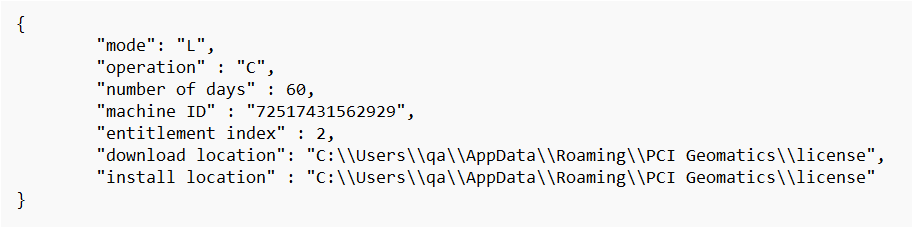
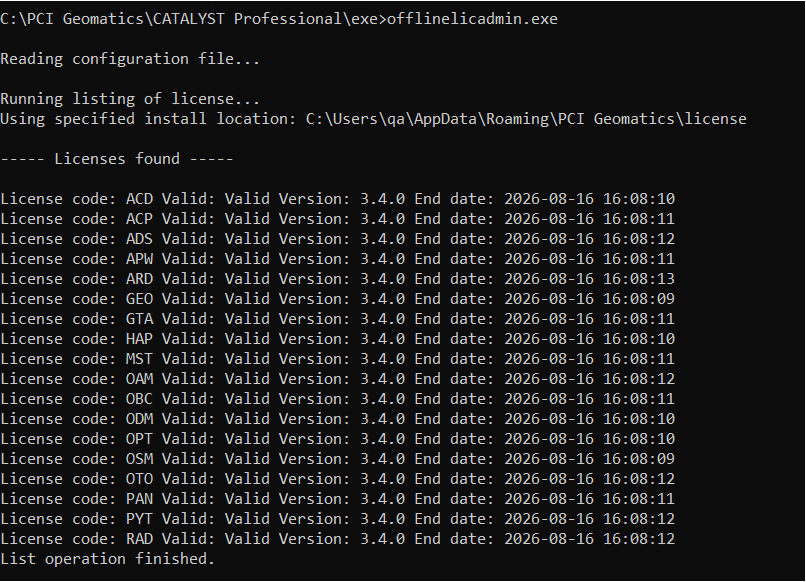
Introduced in CATALYST Professional version 3.4.0, the Entitlement Utility and Offline Licensing tools from the Command Line are designed to automate and accelerate the software licensing process, particularly in large-scale deployment environments.
These utilities provide administrators with a non-interactive method of configuring licensing parameters, retrieving entitlement information, and generating license files without requiring access to the graphical licensing interface.
A common use case is software deployment across multiple systems, such as university computer labs, training environments, or enterprise-managed workstations. Administrators can execute the utilities with predefined parameters to obtain the required license files and then distribute those files to the target machines as part of the installation process.
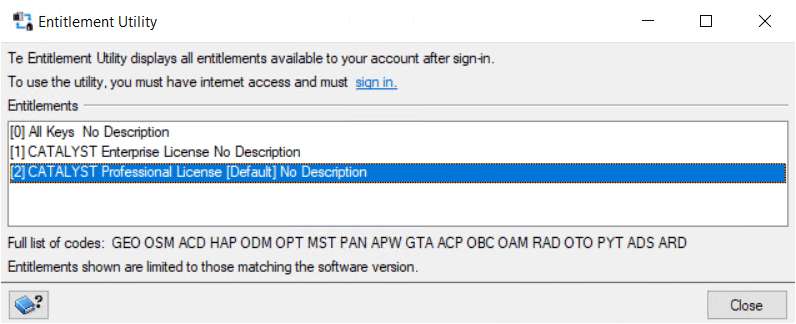
The CATALYST Professional Entitlement Utility is designed to display the entitlements available to an account. Use this tool to view the entitlements and their indices.
To use this tool, you must have internet access and be signed in. To sign in and view your available licenses, select the hyperlink indicated in the tool. This will open a browser where you will be asked to enter your credentials.
If you don’t have credentials, please contact your system administrator or the CATALYST Support Team for assistance at [email protected].
To view the available entitlements and their index required for licensing operations:

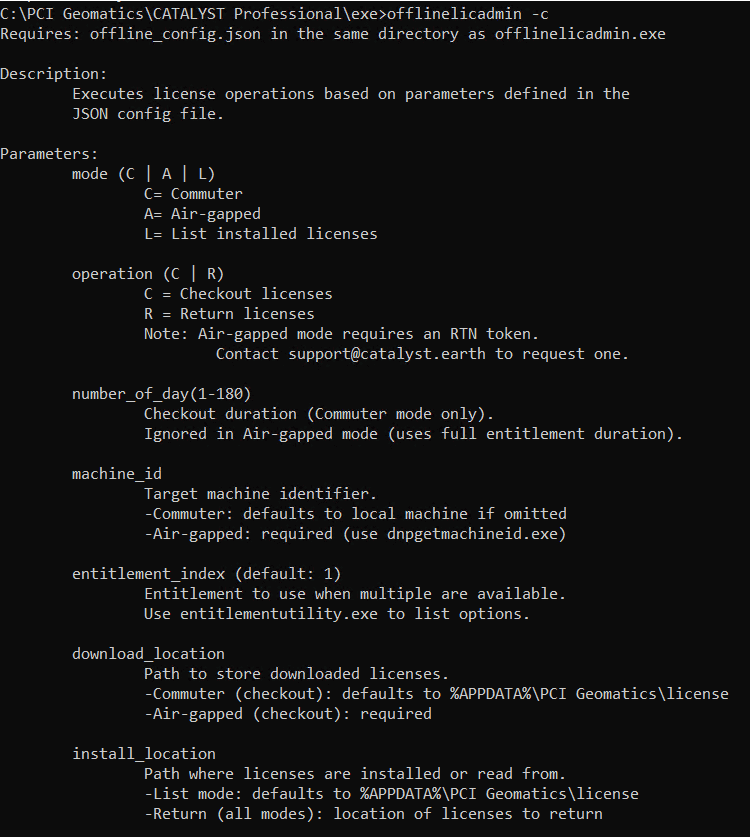
To prepare the configuration file:
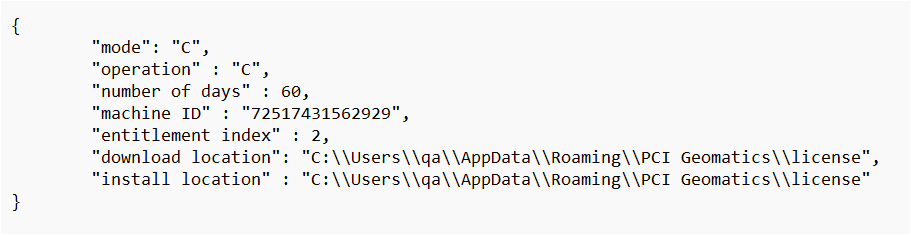
To access the command-line help:
offlinelicadmin -h
To display help and usage information.offlinelicadmin -c
To display available command parameters and options.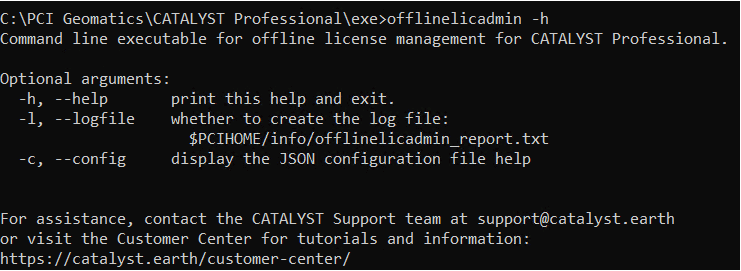
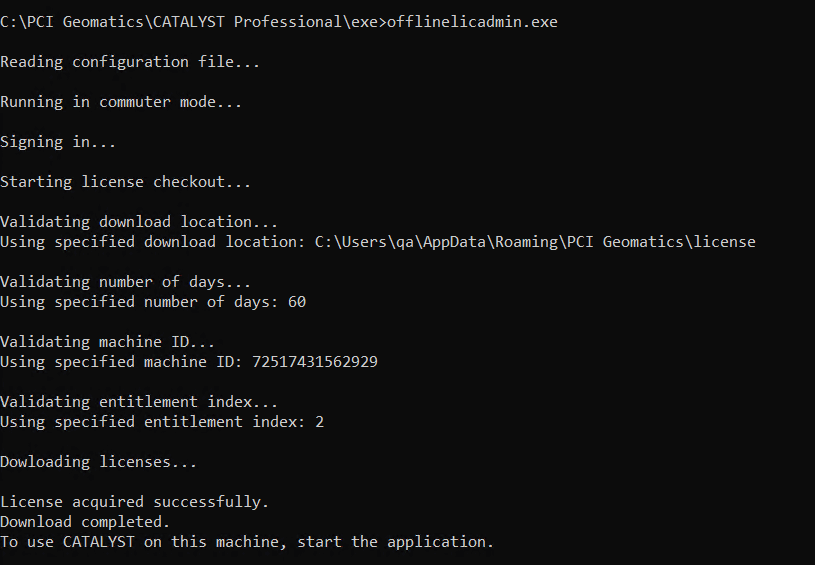
After updating the configuration file:
The Mode L (List) displays the installed licenses, including license versions and expiration dates. This mode provides a mechanism for users to query the local licensing state and validate existing license installations. It can be used to determine whether licenses are currently installed, review their status, and identify any licenses that have expired prior to obtaining additional license entitlements.