This tutorial serves as a guide to installing the newer versions of CATALYST Professional on a Linux machine. CATALYST Professional is compatible with the following Linux operating systems:
Other system requirements and specifications can be found on the CATALYST Technical Specifications webpage.
More information on the installation process can be found in the Install Guide document in the installation package.
The installation package for the software can be found on the CATALYST Earth Downloads webpage.
Note: The Ubuntu 20 installation package is not available on the webpage. Please contact the CATALYST Professional Support Team if you will be working with a compatible software version on that operating system.
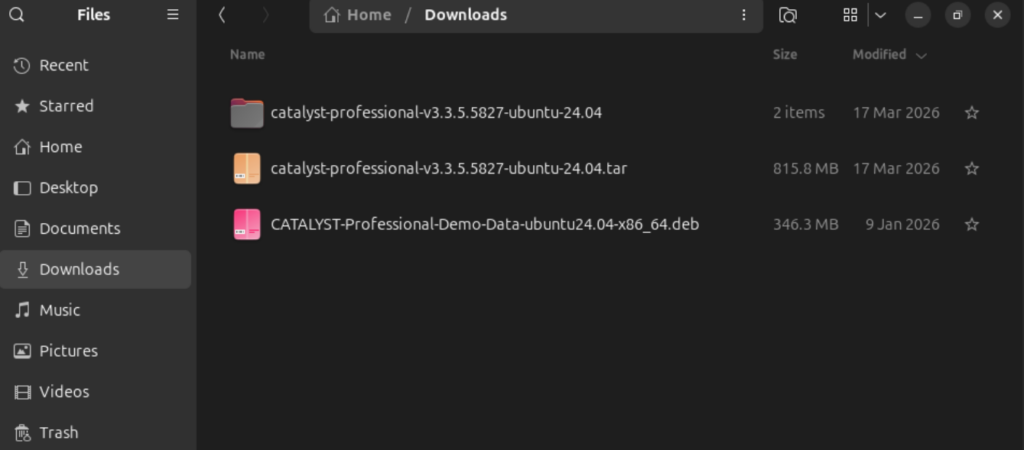
The installation is performed entirely through the terminal and requires sudo privileges to begin.
cp <CATALYST-Professional-<platform>.deb> /tmpsudo apt update.sudo apt install /tmp/<CATALYST-Professional-<platform>.deb>
Y (for yes) or N (for no). Note: if N is selected, the installation will not continue./opt/catalystpro./etc/profile.d/catalystpro.sh, is created. This file must be sourced in non-login terminals to add the necessary CATALYST Professional components to the required system paths. Different options exist depending on your needs:
source /etc/profile.d/catalystpro.sh~/.bashrc file (/home/qa/.bashrc):
if [ -f /etc/profile ]; then . /etc/profile; ficd /opt/catalystpro/exe./catalystpro./focus, ./orthoengine, ./licenseairgappedsystem etc.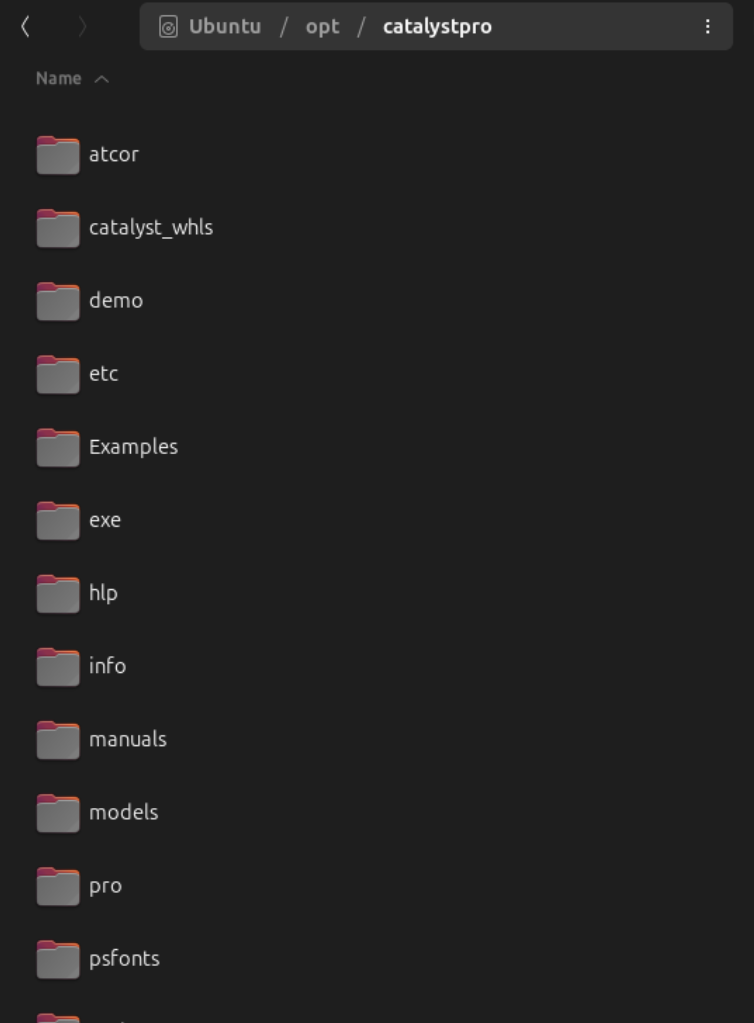
The demo data is installed similarly to the software.
cp <CATALYST-Professional-Data-<platform>.deb> /tmpsudo apt install /tmp/<CATALYST-Professional-Data-<platform>.deb>Y (for yes) or N (for no). Note: if N is selected, the installation will not continue./opt/catalystpro/demo.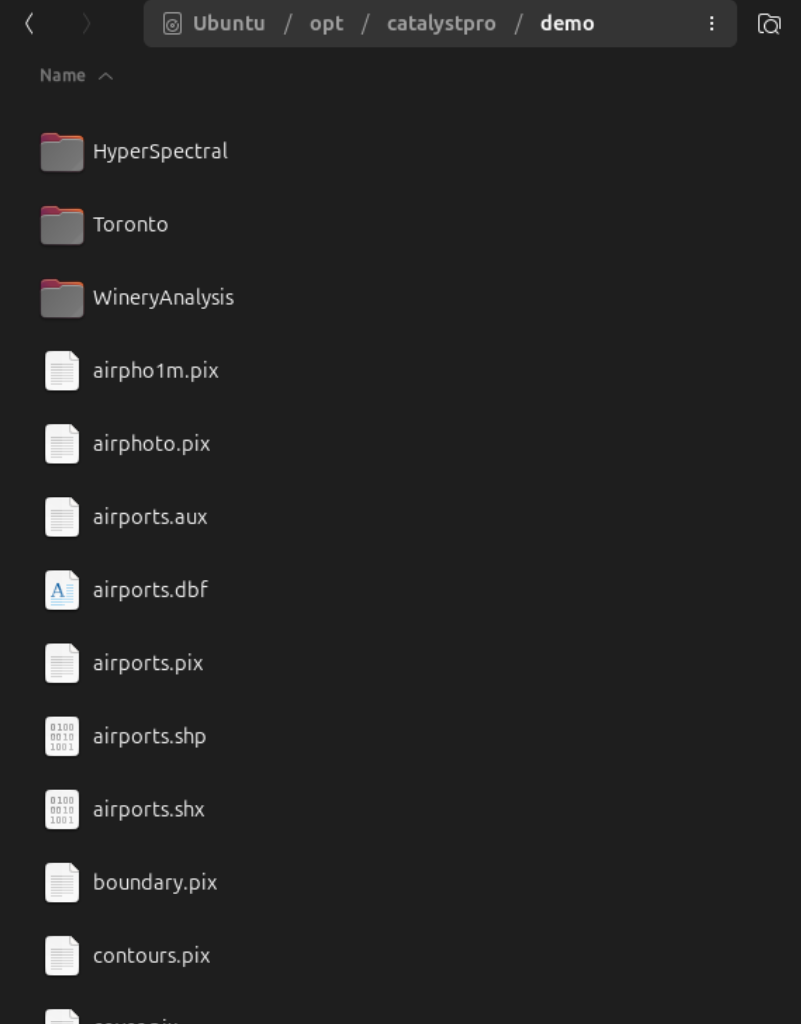
To uninstall CATALYST Professional:
sudo apt remove catalystpro-fullsudo apt remove catalystpro-demo-datasudo apt autoremove