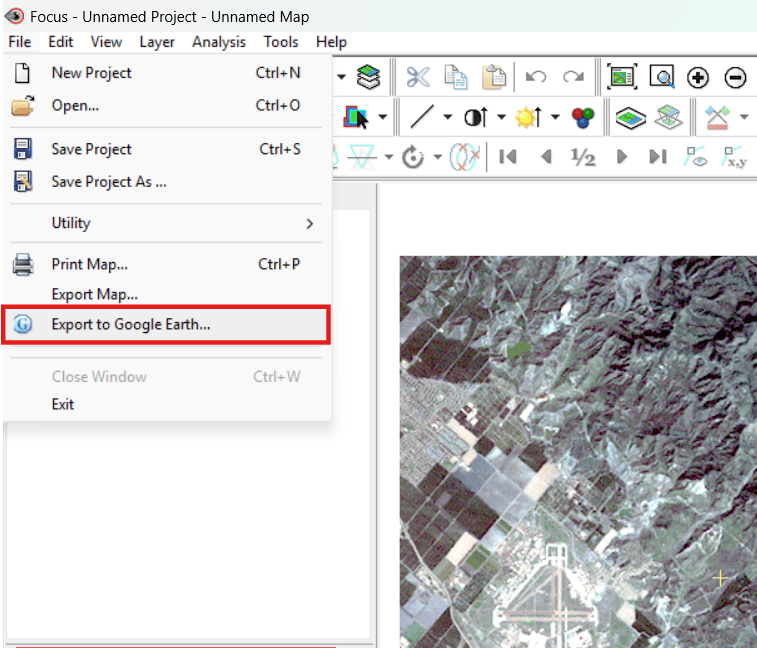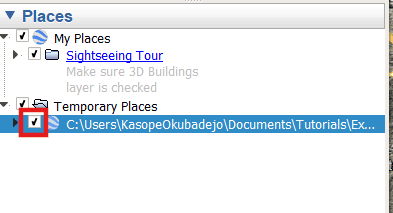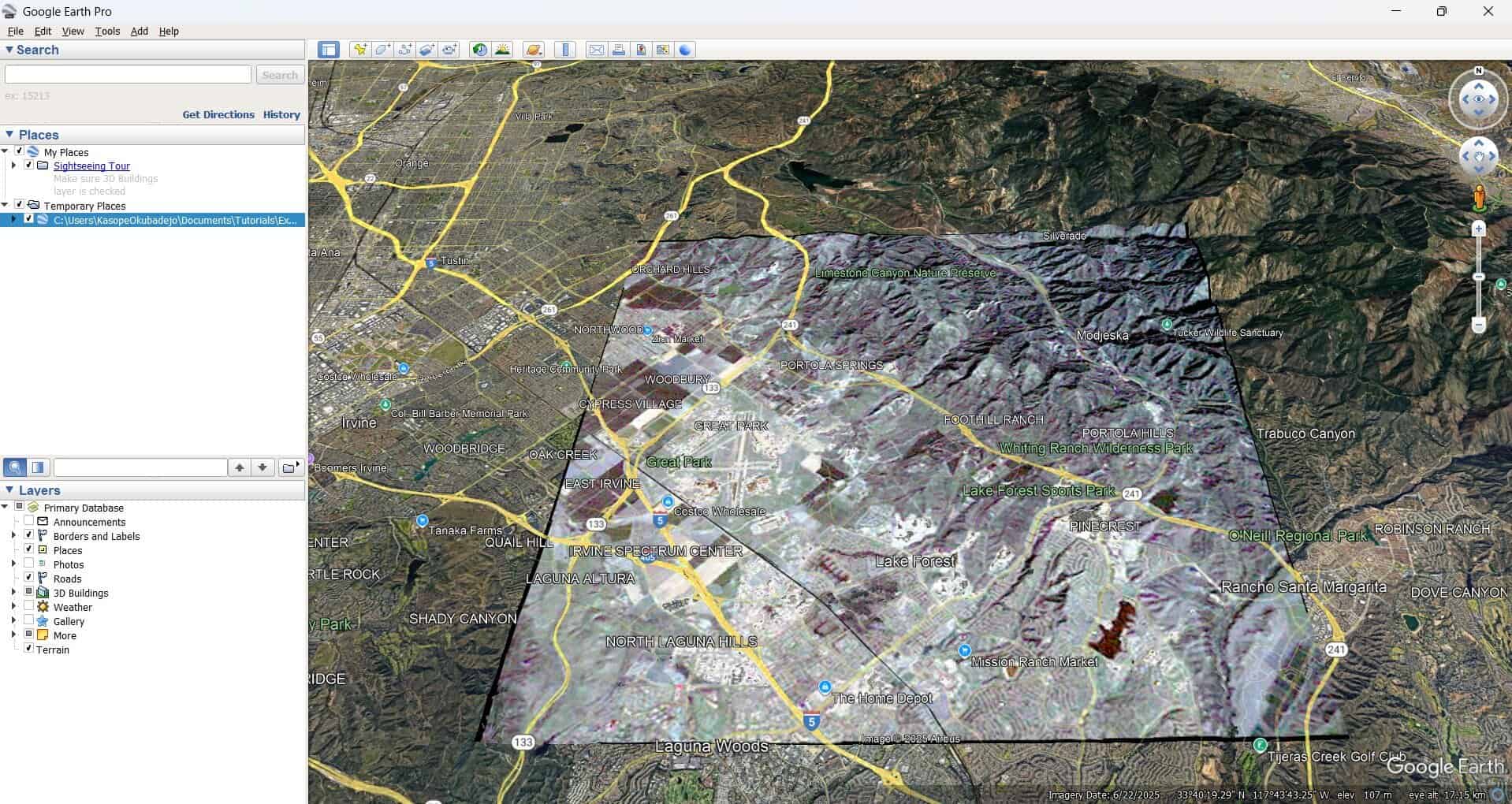
Loading your image into Google Earth lets you verify its size, scale, and positioning against real-world locations. The Focus tool in CATALYST Professional allows you to export an image of your current view into Google Earth KML or KMZ formats for visualization in Google Earth Pro. The exported file is a rendered image of your data, meaning it does not include the original pixels from rasters or the vertices from vectors. If you wish to preserve the original pixels and vertices, you will need to use the EXPORT2KML algorithm.
Note: Google Earth Pro must be installed on your computer prior to exporting your files. You can download the software from Google’s official website.
This tutorial goes through the steps to seamlessly export and open your Focus view in Google Earth Pro, so you can visualize and cross-check the georeferencing with ease. You can learn more about this topic on the CATALYST Professional Help Documentation - Exporting To Google Earth Or KML/KMZ.
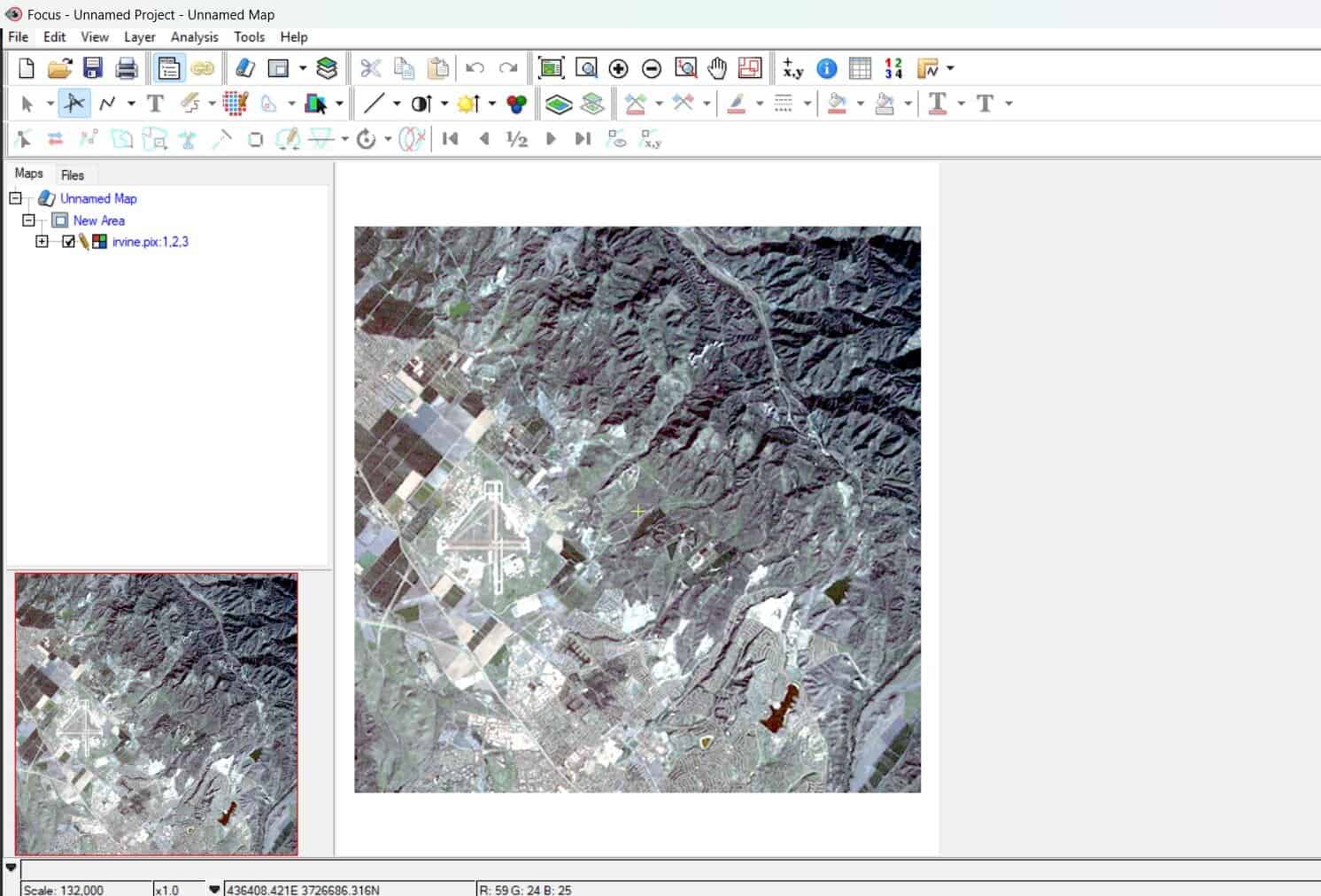 .
.