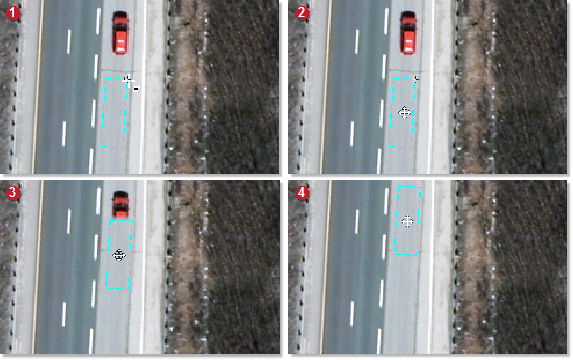
A quick-and-easy way to fix an aspect of an area of interest (AOI) is to paste pixels from one location to another in Copy mode.
To repair an area of interest in Copy mode
- Zoom, pan, or both, as necessary to the AOI you want to repair, and then open Smart GeoFill.
-
On the toolbar of the Smart GeoFill window, click the arrow beside Selection Mode, and make sure Copy is selected.
Alternatively, you can also open a custom or project file set, and then copy an AOI from a file of the set.
- In the Source list, make sure Output is selected.
- On the toolbar, click Selection Mode, and then in the viewer, draw a polygon around the area you want.
- Drag the polygon to where you want to paste the copied pixels.
- After you drag the polygon to the new location, in the Smart GeoFill window, select the Blend width check box, and then type or select a value in the box to the right.
-
On the toolbar, click Show Selection Edge (to hide the selection edge), and then verify the suitability of the blend between the inside and outside of the polygon.
You can further adjust the blend width to suit. If necessary, you can also adjust the color balancing or exposure correction to match the inside of the polygon to the outside.
-
After you are satisfied with the placement of the polygon, the blend width, color balancing, and exposure correction, on the toolbar, click Paste.