If necessary, you can correct the exposure of pixels that are particularly bright or dark in your image.
- Very high overexposure or underexposure: In some images the overexposed areas have no detail hidden and, therefore, cannot be fixed. However, because it is so quick and easy to set up, you may want to attempt exposure correction to see if there is sufficient detail to enhance in the copied pixels.
- Results among sensors, images may vary: You can achieve better results with 16-bit sensors than 8-bit, because there is more information in the overexposed or underexposed areas. Typically, with 8-bit data, overexposed areas are pure white and any detailed information has already been lost and cannot be recovered.
In general, however, you can achieve high-quality results with most aerial and satellite imagery.
- Quality of color retention and image detail: Some sensors can be inconsistent with very high intensities of light and sometimes colors can drift (especially blue). In most cases, colors are retained as naturally as possible. However, altered very bright (white) areas may become darker than other adjacent nonaltered bright areas. This can be partially compensated for by careful adjustment of the Surround match and Interior adjustment sliders.
- Image size, available memory: While you can open and edit very large images (up to hundreds of gigabytes) in Focus, it is recommended that you apply exposure correction to only small portions of an image at a time, because the operation requires a large amount of RAM. You should also limit the size of your polygons—smaller is better—to no larger than 5,000 pixels by 5,000 lines.
To apply exposure correction
-
In the viewer, draw or select the polygon in which you want to apply exposure correction.
The polygon should be larger than the area you want to correct. You need not be overly precise, because when, for example, you are adjusting an overexposed area, having the polygon go through darker regions in proximity to your area of adjustment produces the best results.
-
On the Exposure Correction tab of the Smart GeoFill window, select the End adjustment check box, and then from the list to the right, select Darken light pixels or Lighten dark pixels, as applicable.
Note: In the following images, Darken light pixels is selected.
Notice that when you click the check box, the correction is applied automatically based on the current settings.
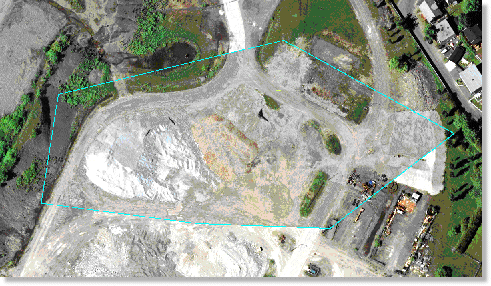 Tip: Hiding the selection edge, as shown in the following figure, makes it easier to see the difference between the interior and the exterior of your polygon. When you cannot see a difference between them, you have a good adjustment.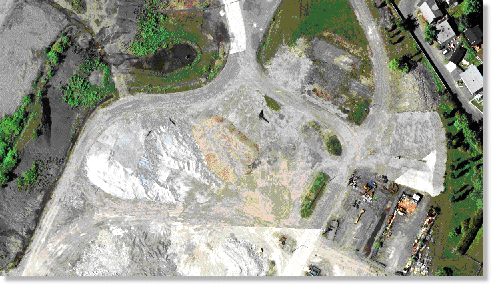
-
To adjust the pixels inside the perimeter of the polygon, drag the Surround match slider.
In the following figure, the image is magnified on a portion of the edge before and after adjusting the Surround match slider.
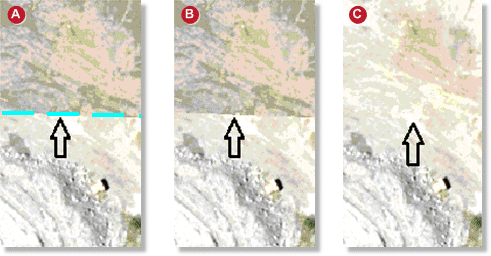
Image A has the polygon showing, image B has the polygon hidden, and image C shows the final adjustment in which the interior and exterior of the polygon match satisfactorily.
Tip: When adjusting the Surround match slider, dragging it toward the leftmost end of the scale (while still making the polygon edges disappear) usually produces the best results. -
To bring out the detail, drag the Interior adjustment slider.
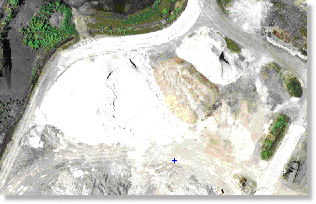
The preceding figure shows the polygon area before adjusting the interior, and the following figure shows the area after adjusting the interior.
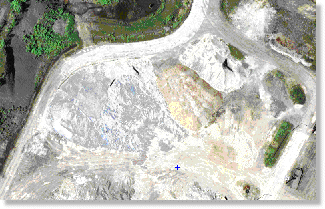
It is at your discretion to achieve an exposure correction that is a high-quality match to the remainder of your image and, correspondingly, enhances the detail of the area inside the polygon.