The Collection Viewer can display up to three views of the image: a main view, a zoom view, and an overview. You can control how views are displayed on the Collection Viewer page of the Options window.
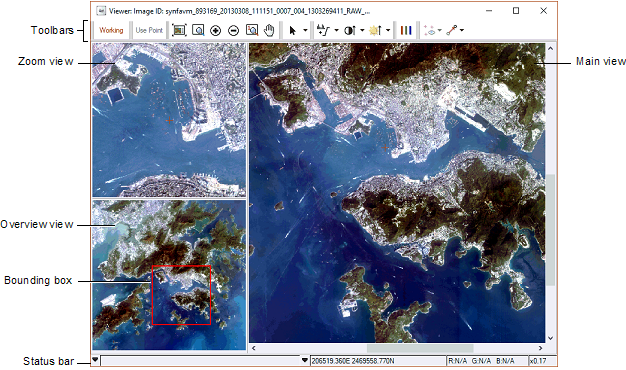
By default, the main view displays a version of the image at one-to-one resolution at the cursor location. In one-to-one resolution, one screen pixel equals one image pixel. You can left-click or right-click to place the cursor at a new point location. You can also change the zoom level in the main view by right-clicking, and then selecting the zoom you want; however, the point location will move to the last place you click.
The zoom view displays the point location at a higher zoom level than the main view. The views are kept in sync as you click in the zoom view or the main view. You can change the zoom level in the zoom view by right-clicking in the zoom view, and then selecting the zoom you want; however, the point location will move to the last place you click.
The overview view displays the whole image at full resolution with a bounding box indicating the area displayed in the main view. You can move the entire bounding box by dragging it to a new location. To change the size of the bounding box, drag the edges of the box.
For more information, see: