The control pane is the leftmost area of the interface. It features two tabs: the Maps tab and the Files tab.
On the Maps and Files tabs, you can create, select, read, and write both image and auxiliary information for the items listed. The control pane uses the GDB library to access both image and auxiliary information within your data files. With GDB support, you can interchange different file types, including third-party file formats.
Maps tab
When you begin a work session, a map, area, and layer are displayed automatically on the Maps tab showing default file names and paths. By default, a new map layer is labeled Unnamed Map. Both the map and layer levels show the name and path of the file you have opened. The area level is labeled New Area by default.

You can right-click any item to perform related commands. For example, you can add a new area to a map.
You can rename a map, area, layer, segment, and so forth, by editing its properties.
 Map
Map
A map is the element at the top of the hierarchy. It is the workspace that holds all of the data for your work, such as the image, surrounds, and indexes.
The map represents the extents of the printable page for your project. You can adjust the map size to control the size of the printed page and adjust the size and position of the image relative to the canvas.
A project can have more than one map.
 Area
Area
An area is the file boundaries for either an image or vector layer. It can include several layers and segments for a geographical region.
Each area has a unique georeferencing system. When an image or vector layer is added to an area, it is scaled automatically and georeferenced to the area.
A map can have more than one area.
Layer
Any of several types, a layer is the data displayed in the view pane.
On the Maps tab, you can rearrange layers to change the image in the view pane. You can change the order of layers by dragging them up or down to the position you want. A layer is composed of segments, and when you move a layer, the segments are also moved within it.
Segment
Any of several types, a segment is a component that composes a layer, such as a raster, vector, bitmap, or lookup table (LUT).
The files listed on the Maps tab are a hierarchy of elements that compose a project. Each item has properties you can view ,modify, or both on the Maps tab, the Files tab, the menu bar, and shortcut menus.
Files tab
The Files tab presents more detailed information about a file or files, including the associated layers; namely, rasters, vectors, bitmaps, lookup tables, pseudocolor tables, ground control points, and signatures. You can view this information when it is saved to disk.
For example, with a .pix file, you can view raster, vector, and bitmap data, and other applicable data, such as lookup tables (LUT), pseudocolor tables (PCT), ground control points (GCP), and more. You can show or hide the vector and bitmap segments listed on the Files tab in the view pane.
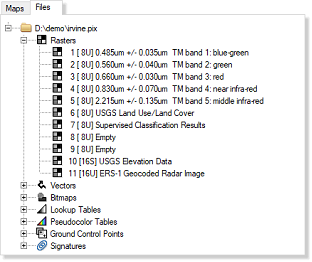
You can right-click any item to perform related commands. For example, you can export a specific segment of a layer.