Parameter descriptions
Reference Images
The path and name of the folder containing reference imagery to prepare.
Search Pattern
The search pattern to use when scanning the folder of reference imagery.
For example, to search PCIDSK files, you can specify *.pix, or to search .TIFF (or .tif) files, you can specify *.tiff or *.tif, as applicable. You can also combine two or more patterns separated by a comma, such as *.pix, *.tif.
Include Subfolders
Select this check box to include subfolders in the search.
Output Folder
The path and name of the folder to which to write the output files.
Maintain Directory Structure
If selected, the directory structure of the Reference Images will be reproduced in the Output Folder. Otherwise all files will be placed directly in Output Folder.
Create Linked PIX files
If selected, the output files will be linked PIX files that link to the input files. Otherwise they will be standalone files.
Overwrite Results
Select this check box to overwrite the existing output files, if any exist. If this check box is left clear, and an output file exists in the relevant folder, the status of the job displays a message informing you of the existence and name of the output file. The message is also written to the event log of the job.
Update Existing Index File
If selected, the Reference Images will be added to the existing index file found in Output Folder. Otherwise, if the index file exists, it will be overwritten or no processing will be done, depending on the value of Overwrite Results.
Indexing Method
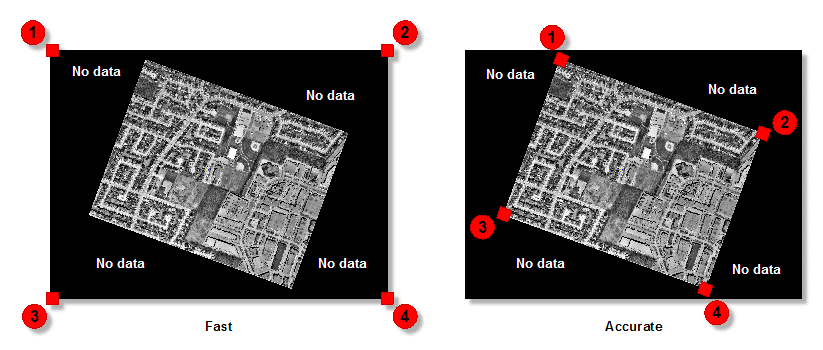
There are two options available for indexing: Fast and Accurate. With the Fast option selected, the four corners of the scene are detected, including areas where there is no data. This option performs indexing the fastest. With the Accurate option selected, the system attempts to find the inner four corners where data exists, and excludes most of the no-data area.
When indexing orthos that have no-data values in the corners, choosing the Accurate option is recommended, though it takes longer than the Fast option.
Stored Path Type
- Relative: stores the relative path in the attribute table of the vector segment created.
- Absolute: stores the absolute path in the attribute table of the vector segment created.
The benefit of using a relative path is that you can move the index along with the images to another folder or computer, and the files are still be recognized. With an absolute path, the exact path of the image must always exist.
Horizontal Accuracy
The horizontal accuracy of a given pixel in the reference image data. Units for this value are the same as the map units of the source files.
For example, X,Y defines the coordinates of a specific pixel in the reference-image data. However, because there is always some margin of error in image data, the eX and eY coordinates define the level of horizontal accuracy in the reference imagery.
The specified accuracy levels are included as ORTHO_X_ACCURACY and ORTHO_Y_ACCURACY metadata tags in the output index file. These tags are read and interpreted by other CATALYST Enterprise modules.
Generate GCP Candidates
Select this check box to generate candidates for GCP collection during processing.Generation Method
The method to use to create GCP samples from the source imagery.
- Susan: Sample points are generated automatically by using the Susan corner-detection algorithm.
- Grid: Sample points are generated automatically by using sample points distributed evenly across the reference image.
Both methods determine how to find the candidate positions in the reference image. AutoGCP will attempt to collect GCPs at these locations.
- Susan finds the candidates by running a corner-detection algorithm on the image, which looks for corner-like features to use as candidates.
- Grid creates candidates in a grid-like pattern. Because this option does not preprocess the image, it tends to be faster, but it also finds fewer matches, because the grid point might fall on a featureless, flat patch somewhere in the image that cannot be matched to anything in the overlapping images.
When collecting GCPs, the Grid option is preferred because the Susan option finds candidates on building corners that may not be represented in the digital elevation model (DEM), leading to GCPs with higher residuals due to height errors.
The default method is Grid.
Susan Channels
The channel from the reference image to use with the Susan method when collecting GCPs. Channel 1 is the default.
Distribution Method
The method to use for distributing GCP candidates.Available options are:
- Entire: Target number of GCP candidates for each reference image, distributed evenly throughout the reference image. Larger numbers produce a more dense set of candidates, which may increase GCP-collection time.
- Map Spacing (meters): Minimum distance, in meters, between GCP candidates. Smaller numbers produce a more dense set of candidates, which may increase GCP-collection time.
- Pixel Spacing: Minimum distance in pixels between GCP candidates. Smaller numbers produce a more dense set of candidates, which may increase GCP-collection time.
Distribution Amount
The distance between GCP candidates or the total number of GCPs to generate.
The meaning of the value of this parameter depends on the value of the Distribution Method parameter; that is, the value may be number of GCP candidates or a distance, in meters or pixes.
Candidate Trials
The number of trials per candidate.
A trial is an attempt to match a candidate point between the reference image and the input image. You can specify a value ranging from zero through three. If you specify a value greater than one, and the first attempt fails, another attempt is made to match the points. For example, if you specify a value of 3, up to three attempts is made.
A higher value may increase GCP-collection time.
Reference Background Type
The method to use to determine which pixels in the reference image to process as background (NoData) pixels. In general, if a pixel is considered NoData, the module processes it in a specific manner.
If the Any option is selected, a value must be specified for the Reference Background Value parameter.
-
File Metadata, else None: reads the NoData value from the input-file metadata. The module first checks for the file-level metadata tag NO_DATA_VALUE in the reference raster. If the tag is present, this value is used as a default for all channels in the file. Next, the module checks for channel-level NoData tags; if one is found, the channel-level value overrides the file-level value for that channel.
If there are channel-level NoData tags, but no file-level tag, a pixel is considered as NoData if each of the channels with a NoData tag corresponds to its NoData value. In this case, channels without a NoData tag are ignored when identifying background pixels.
If the file does not contain NoData tags, all pixels in the reference image are considered valid.
- None: all pixels in the reference image are to be considered valid
- Any: if the pixel value in any channel matches the value provided for the Reference Background Value parameter, the pixel is considered background and written to the output file (NoData).
For specific examples, see the Reference Background Value parameter description.
Reference Background Value
The reference background value or values when the Reference Background Type parameter is set to Any.
The reference background value is provided as either a single number (applied to all channels) or as a pixel "stack" (a comma-delimited list of values). If a pixel stack is provided, but the number of values does not equal the number of channels, the list is truncated or the last value is repeated as necessary. The background values provided is truncated to the range allowed by the reference image data type.
- Reference Background Type set to Any and Reference Background Value set to 0: a pixel is considered background if any of the three channels is zero
- Reference Background Type set to Any and Reference Background Value set to 128,0: a pixel is considered background if the value in channel 1 is 128 OR if the value in channel 2 or 3 is zero.
- Reference Background Type set to Any and Reference Background Value set to 1032,0: a pixel is considered background if the value in channel 1 is 255 OR if the value in channel 2 or 3 is zero. The first value is truncated to the range allowed for 8U data.