The position of a grid is based on the position of the neatline or on an Area if the neatline is not set.
- From the Maps tree, right-click a grid and click Properties.
- In the Grid Properties window, click the General tab.
- In the Distance To Neatline area, enter a value representing the distance from the left border to the left neatline (or Area) in the Left spin box and choose a unit of measurement from the list box. If you want to keep the distance between the border and the neatline (or Area) the same on all sides, enable the Keep equal check box and go to step 7.
- Enter a value representing the distance from the right border to the neatline (or Area) in the Right spin box.
- Enter a value representing the distance from the top border to the neatline (or Area) in the Top spin box.
- Enter a value representing the distance from the bottom border to the neatline (or Area) in the Bottom spin box.
- Enable one of the following options: Fixed Interval: sets the grid spacing according to a fixed distance between the lines. Follow step 8 to step 10. Fixed count: sets grid line spacing according to a fixed number of lines. Follow step 11 and step 12.
-
In the Fixed Interval area, enable one of the following options:
- Paper: bases a grid on paper measurements
- Georeferenced: bases a grid on an Area projection
- Latitude/Longitude: bases a grid on latitude and longitude coordinates
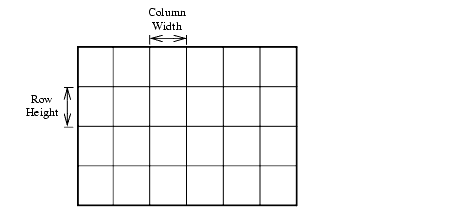
- Enter a value representing the horizontal width of the column in the Column Width spin box and choose a unit of measurement from the list box.
-
Enter a value representing the vertical width of the row in the Row Height spin box.
If you want to keep the column width and row height the same size, enable the Keep equal check box.
- In the Fixed Interval area, enter a value representing the number of columns that you want to cover the Area in the Column spin box.
- Enter a value representing the number of rows that you want to cover the Area in the Row spin box. If you want to keep the number of columns and rows the same, enable the Keep equal check box.
- Click OK.