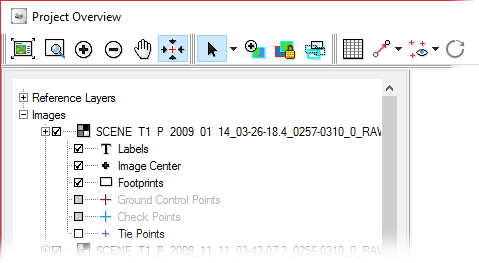
In the leftmost pane of the Project Overview window, you can hide or show the photos in your project, and hide or show the property items of each; namely, labels, the image center, footprints, the image content, ground control points, check points, tie points, and point IDs.
Hiding images and their properties can help to declutter the display. This is useful especially when working on a large, complex project.
By default, the Project Overview window displays a collapsed view of the images in the leftmost pane of your project .
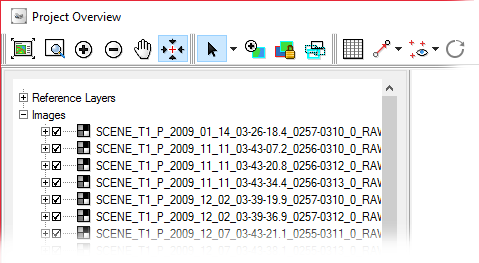
In the leftmost pane, you can expand the image to see the property items by clicking the plus sign ( ) beside the image name. You can also select or clear the check box beside the image name or property to show or hide it, respectively.
Alternatively, with images only, you can right-click the image name, point to Show, and then on the new menu that appears, click the item you want to show or hide. A check mark beside the menu item indicates that it is shown currently.
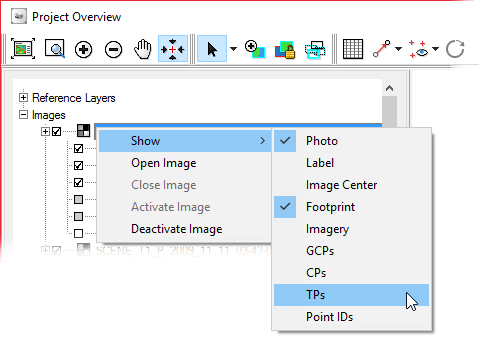
To hide or show images and property items in the Project Overview window
- In the leftmost pane of the Project Overview window, do one of the following, as applicable.
| To | Do this |
|---|---|
| Hide an image displayed currently | Clear the check box beside the image name. |
| Hide a group or range of images displayed currently | Group: Click the first image you want to hide, hold down Ctrl, click each additional image to select the group, right-click the selection, point to Show, and then click Photo. |
| Hide one or more image-property items displayed currently | Expand the image, as necessary, and then clear the check box of one or more of the items you want to hide. |
| Hide the same property item for a group or range of images | Group: Click the first image for which you want to hide the item, hold down Ctrl, click each additional image, right-click the selection, point to Show, and then click the item you want to hide. |
| Show a hidden image | Click the check box beside the image name. |
| Show a hidden group or range of images | Group: Click the first image you want to show, hold down Ctrl, click each additional image to select the group, right-click the selection, point to Show, and then click Photo. |
| Show one or more hidden image-property items | Expand the image, as necessary, and then clear the check box of one or more of the items you want to show. |
| Show the same hidden property item for a group or range of images | Group: Click the first image for which you want to show the item, hold down Ctrl, click each additional image, right-click the selection, point to Show, and then click the item you want to show. |