Using epipolar images increases the speed of the correlation process and reduces the possibility of incorrect matches.
To create epipolar images
-
Under Epipolar selection, click one of the following:
- User select to select the pairs manually. In the boxes under Left Image and Right Image, respectively, click the images that you want to use to form the pair. With ASTER images, use the nadir image as your left image. With RADARSAT images, use the image with the larger incidence angle as your left image.
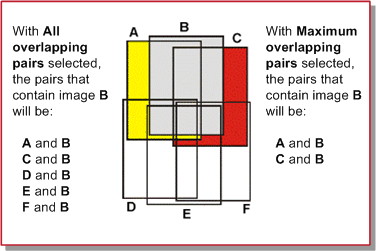
- Maximum overlapping pairs to automatically select the pairs that demonstrate the highest amount of overlap. Each image forms pairs with the two images that overlap it the most. In the Minimum percentage overlap box, type or select the lowest percent of overlap acceptable between two images to be considered a valid pair.
-
All overlapping pairs to automatically select all the pairs that overlap above the specified minimum percentage. In the Minimum percentage overlap box, type or select the lowest percent of overlap acceptable between two images to be considered a valid pair.
Figure 1. Comparing All overlapping pairs and Maximum overlapping pairs
- Optimum pairs to generate stereo pairs to cover the entire project area, and attempt to eliminate excessive duplication. When this method is selected, the value of the Minimum Percentage box is ignored. Before pairs are selected for processing, the images are assigned to contiguous flightlines, and only pairs of images from the same flightline are considered, to eliminate side overlaps. The Optimum pairs selection method is intended for use in processing airborne images only, where the concept of flightlines is well defined.
With an aerial project, this is the default option.
-
Under Left Image and Right Image, respectively, do one of the following:
- To use a specific channel or channels, make sure the Channels option is selected (default), and then in the box to the right, type the channel or channels you want to use (the default is channel 1).
- To use all of the channels, click All.
Note: To extract a stereo DSM from a Radarsat-2 image, select the image with the highest incidence angle as the left image during epipolar generation. -
In the Output folder box, you can use the default folder name, type a new one, or to select a folder to which to write the generated epipolar pairs, click Browse.
The files created will consist of el_<IMAGE(1)>_<IMAGE(2)>.pix and er_<IMAGE(1)>_<IMAGE(2)>.pix, which correspond to the left and right epipolar pairs respectively for <IMAGE(1)> and <IMAGE(2)>.
Note: In addition to the epipolar files, linked .pix files (<IMAGE(N)>_link.pix) will also be created in the folder, which reference the original image data, but also contain the current math model from your OrthoEngine project. - Click Add Epipolar Pairs To Table to record the pair(s) under List of Epipolar Pairs. If in step 1 you selected User Select, repeat the steps until you have recorded all the pairs that you want.
-
In the Epipolar pairs table, the pairs with a check mark in the Select column will be converted into epipolar pairs. You can modify your choices by doing the following:
- To deselect a selected pair, in the Select column, click to clear the check mark of the pair you want. To select all the pairs in the list, click Select All. To clear all the check marks, click Select None.
- To remove one pair from the table, in the Number column, click the pair you want, and then click Remove. To remove all the pairs from the table, click Remove All.
- To interchange the left and right images in a pair, under the Number column click the pair of your choice and click Switch Pairs. To interchange the left and right images in all the pairs, click Switch All Pairs. If in step 1 you chose Maximum overlapping pairs or All overlapping pairs, the left and right images in the pair may be in the wrong order, meaning that the left image is on the right and vice versa. This situation will not affect DEM generation, but it will cause some visually unsuitable effects when you view the epipolar pair in three-dimensions (3-D). The human brain interprets images seen with the left eye and the right eye in a certain way. When the images are in the wrong order, the human brain cannot compensate for the error so, for example, mountains may instead "appear" as valleys.
-
Under Options, in the Downsample factor box, type the number of pixels to use to create the epipolar images from the raw imagery.
In converting the two images to epipolar geometry, cubic-convolution resampling is used. Unless specified otherwise, one pixel is used for downsampling.
-
Under Options, do one of the following:
- When you have a clip region defined in your project, and you want to process only data from that region, select Use clip region.
- To clip a percentage of pixels along the epipolar images, select Edge clip.
Note: By default, for aerial projects the value is set to 5%, while for other projects it is set to 0%. You can set the value between 0 and 50, where 0 turns the clipping off.
-
Under Processing Start Time, do one of the following:
- To begin immediately, make sure the Start now option is selected (default).
- To begin at a time you specify, click Start at (hh:mm), and then in the boxes below, type or select the time you want (within 24 hours).
-
Do one of the following:
- To begin the process according to the time set under Processing Start Time, click Generate Pairs.
Apply the command when you are working with small-to-medium-sized projects with fewer images, or when batch processing is not a primary requirement.
- To save your settings for batch processing with automatic DEM extraction, click Save Setup.
Note: When you save your setup, the values set for Processing Start Time are not included.
- To begin the process according to the time set under Processing Start Time, click Generate Pairs.