You configure a module for batch mode by defining two or more batch parameter sets for that module. Modeler can process three multiple-input file configurations in batch mode:
- Two or more layers in a file processed individually
- Two or more layers in a file processed collectively
- A combination of the above mentioned configurations
For Modeler to process two or more layers in a file individually, load the file multiple times into the Import module. You then choose a different layer from each copy of the file. For information on loading the same file multiple times into the Import module, see Loading one input file multiple times.
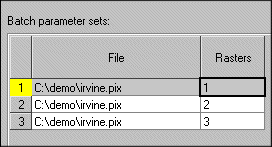
For Modeler to process two or more layers in a file collectively, load the file into the Import module. You then choose the layers you want to process.
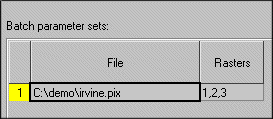
An alternative method for processing each layer individually is to load all layers in the Import module and then attach the Import module to the Release module.
If the number of batch parameter sets for two modules are not the same, then Modeler repeatedly processes the last batch parameter set of the module with the fewer number of sets until all batch parameter sets of the other module have been applied.
For more information on the Batch Parameter Sets table, see Understanding the Batch Parameter Sets Table.
Note: Entries in the Batch Parameter Sets table can be edited from the Input Params 1 tab only.