In cartography, scale is the ratio of the distance between two points on a map, and the actual distance between the same two points on the surface of the Earth.
- Ratio or representative fraction (RF), such as 1:50,000 or 1/50,000, which means that one unit of measurement on the map equals 50,000 of the same units on the surface of the Earth.
- Graphic scale, usually a straight line on which distances (most often in kilometers or miles) have been marked off.
- Scale statement, such as 1 cm = 100 km. This scale statement means one centimeter on the map represents 100 kilometers on the surface of the Earth.
A new area is scaled automatically to the best fit for the dimensions of a map. For example, in Focus, the area scale for a standard 8.5-by-11-inch page is set to a scale factor of 1:20000, by default. A new area contains no raster or vector data. When you add new data, it is scaled automatically to the scale of the relevant area.
When Focus is in Map mode, you can click an area on the Maps tab, and then in the view pane, modify the area by dragging one of the available handles.
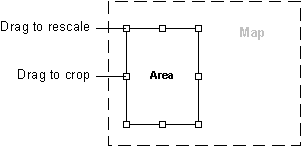
To scale an area
-
On the Maps tab, double-click the area you want to scale.
The Area Properties window appears.
- Click the General tab.
-
In the Scale list, select the scale you want.
To use a custom scale, select Custom, and then in the box below, enter the scale you want.