Parameter descriptions
Input Scenes
The path and name of the folder containing the scenes of orthorectified images to process.
This parameter is mandatory.
Output Folder
The path and name of the folder to which to write the output files.
Output File Type
The format of the output file.
For more information on the supported file formats, see GDB-supported file formats.
Output File Options
The options to apply when creating the output file or files. The available options are specific to the file format; in each case, the default of no options is allowed.
For more information on the options available for the output file type you specify, see GDB-supported file formats.
Overwrite Results
Select this check box to overwrite the existing output files, if any exist. If this check box is left clear, and an output file exists in the relevant folder, the status of the job displays a message informing you of the existence and name of the output file. The message is also written to the event log of the job.
Send Email
If necessary, you can set up CATALYST Enterprise to send an email notification on job start and job completion.
With this check box selected, an email message is sent to each address specified in the Email Addresses box after the job starts and on completion.
You can specify one or more addresses, and each must be separated by a comma or a semi-colon. The email address of the user currently logged in displays by default.
Source Background Type
The method to use to determine which pixels in the source image to process as background (NoData) pixels. In general, if a pixel is considered NoData, the module processes it in a specific manner.
If the Any option or the All option is selected, a value must be specified for the Source Background Value parameter.
-
File Metadata, else None: reads the NoData value from the input-file metadata. The module first checks for the file-level metadata tag NO_DATA_VALUE in the source raster. If the tag is present, this value is used as a default for all channels in the file. Next, the module checks for channel-level NoData tags; if one is found, the channel-level value overrides the file-level value for that channel.
If there are channel-level NoData tags, but no file-level tag, a pixel is considered as NoData if each of the channels with a NoData tag corresponds to its NoData value. In this case, channels without a NoData tag are ignored when identifying background pixels.
If the file does not contain NoData tags, all pixels in the source image are considered valid.
- None: all pixels in the source image are to be considered valid
- All: if the pixel value in all channels matches the values provided for the Source Background Value parameter, the pixel is considered background (NoData).
- Any: if the pixel value in any channel matches the value provided for the Source Background Value parameter, the pixel is considered background (NoData).
For specific examples, see the Source Background Value parameter description.
Source Background Value
- All
- Any
The source background value is provided as either a single number (applied to all channels) or as a pixel "stack" (a comma-delimited list of values). If a pixel stack is provided, but the number of values does not equal the number of channels, the list is truncated or the last value is repeated as necessary. The background values provided is truncated to the range allowed by the source image data type.
-
Source Background Type set to All and Source Background Value set to 0: a pixel is considered background if all three channels are zero.
- Source Background Type set to Any and Source Background Value set to 0: a pixel is considered background if any of the three channels is zero
- Source Background Type set to All and Source Background Value set to 128,0,0: a pixel is considered background if its value is exactly 128 for the first channel and zero for the second and third channels
- Source Background Type set to All and Source Background Value set to 128,0,0,245: a pixel is considered background if its value is exactly 128 for the first channel and zero for the second and third channels. The value 245 is ignored.
- Source Background Type set to Any and Source Background Value set to 128,0: a pixel is considered background if the value in channel 1 is 128 OR if the value in channel 2 or 3 is zero.
- Source Background Type set to Any and Source Background Value set to 1032,0: a pixel is considered background if the value in channel 1 is 255 OR if the value in channel 2 or 3 is zero. The first value is truncated to the range allowed for 8U data.
Input Raster Channels
For each orthorectified image scene, the channels to include in the linear combination.
If you do not specify a value, all channels in the scenes are used.
This parameter is optional.
Coefficients Source
The source of the coefficients you specify to apply to the orthorectified image scenes during processing.
- List: When you select this item, enter the list of coefficients in the List box, below.
- File: When you select this item, enter the path and file name in the File box, below.
List
When you select List for Coefficient Source, the linear-combination coefficients to apply to the orthorectified image scenes during processing.
You must provide coefficients for each input raster channel. Separate each coefficient set of an image channel with a semicolon (;). By default, all image raster channels are included.
- 1.0,0.0,0.0,0.0; 0.0,0.91,0.0,0.09; 0.0,0.0,1.0,0.0; 0.0,0.0,0.0,1.0
- Blue
- Green
- Red
- Near infrared (NIR)
File
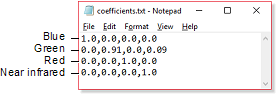
When you select File for Coefficient Source, the path and file name of the linear-combination coefficients to apply to the orthorectified image scenes during processing.
You must specify the coefficients for each input raster channel on a separate line, as shown in the following figure:
- Blue
- Green
- Red
- Near infrared (NIR)