If necessary, you can use extra options to modify the selected color-balancing method.
Bundle
You can specify Autoscale for all input images to be stretched linearly and have a common scale. This can improve the results when different input images have significantly different dynamic ranges.
LUT
With this option, you specify the LUT segments to use for each input file; for example, specify 1,2,3 for an RGB image.
Histogram
The extra options for Histogram are match and trim percentage. The match_area_multiple option determines the amount of data in the mosaic file to use to compute the reference histogram. The trim percentage option is the percentage of the histogram you want to trim.
For example, to use 100 percent of the match area and trim five percent of the histogram to remove outliers, specify a value of 1,5.
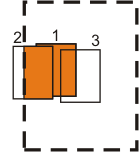
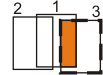
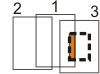
In the following table, image 3 is being added to the mosaic file that contains image 1 and image 2 (the rest of the mosaic file is empty). The area used to match the histograms is represented by a dashed-line rectangle.
| To create a corresponding area | Enter a match-area percentage of | Result |
|---|---|---|
| Three times the size of the input image | 3 | The highlighted areas in images 1 and 2 and all the pixel values in image 3 are used to calculate the histogram.
|
| The same size as the input image | 1 | The highlighted area in image 1 and all the pixel values in image 3 are used to calculate the histogram.
|
| Half the size of the input image (1) | 0.5 | The highlighted area in image 1 and all the pixel values in image 3 are used to calculate the histogram.
|
| Half the size of the input image (2) | -0.5 | Only the pixel values in the highlighted area of both image 1 and image 3 are used to calculate the histogram.
|
Reference
With the Reference method, the extra options you must specify are the path and file name of the image you want to use as reference.
Neighborhood
- meanbias_adjustment: Applies a general correction to the image.
- outlier_correction: When set to YES, discards the "outlier" values to compute the correction.
- outlier_threshold: Applicable only when outlier correction is set to YES, defines the number of standard deviations beyond the value you specify as an outlier. The default value is 1, which means that 95 percent of the data is used.
Color-balance masks
Color-balance masks omit regions from color balancing so that they do not negatively impact the color-balancing operation. For example, large water bodies can make land masses appear more blue; urban areas surrounded by forest can impact the colors of forest and urban areas; and clouds can cause the rest of the image to appear "washed out."
Local color-balance masks define regions in individual images that are different from one image to the other, such as clouds. Global color-balance masks specify regions that are common to other images, such as water bodies.