CATALYST Py General
This section provides some basic recipes for testing your installation, importing CATALYST’s Python library (modules), accessing help, error handling, etc.
Check Installation of CATALYST Py Libraries
Quickly check to ensure that CATALYST is correctly installed and licensed for your computer. Use Python’s interactive mode in the terminal/console for quickly checking the installation and licensing.
If you are running in CMD and have multiple Python versions installed, make sure you are using the 64-bit python 3.10 version. This is especially important if you have ArcGIS installed. A 32-bit version of python is installed with ArcGIS.
More information on Getting Started with CATALYST and Python is available from the Developer Zone: https://catalyst.earth/tutorial/getting-started-with-geomatica-and-python/
Open Command Line (Start > type CMD) In CMD navigate to the python310 folder:
> cd C:Program FilesPython310 (this could be different based on your installation)
Start the Python shell: > python
import pciIf no error message appears then the PCI library has been correctly imported. You can then choose to check the CATALYST Version from command line to ensure that the correct CATALYST version is being used.
pci.versionThe PCI version is then printed in the terminal.
Import CATALYST Py Libraries
This example explicitly imports the pansharp function from the pansharp module. Alternatively, you can also import the pci.algo module. This allows you to only import one module. You would then run a function with the algo module - i.e. algo.pansharp() instead of pansharp().
from pci.pansharp import pansharp # Imports the pansharp2 function from the pansharp2 module
from pci.algo import * # imports the algo module which provides access to all CATALYST functions
Accessing Help About CATALYST Py Function
Python prints help documentation to the terminal/console for the specified function. This includes information about the signature of the function (arguments that need to be passed) and information about what the function does. Furthermore, the help document includes information about what input data is required and what output is produced.
It is best to access this directly with the python interpreter in CATALYST Professional’s Focus or using a terminal/console.
from pci.pansharp import pansharp

help(pansharp)
Handling CATALYST Py Exceptions
This example demonstrates how to handle exceptions that may result from incorrectly invoking a CATALYST function. The main behaviour of this action is that the script will continue to run if the exception is called. This is mainly desirable when performing batch operations, so that if one file fails to run, the script will continue to process the other files.
from pci.pansharp import pansharp
from pci.exceptions import PCIException

ms_file = r"c:\NewYorkk_multispectral.pix" # this file is incorrectly spelt and thus, does not exist
pan_file = r"c:\NewYork_panchromatic.pix"
out_file = r"c:\NewYork_pansharpened.pix"

try:
    pansharp(fili=ms_file, dbic=[1,2,3,4], fili_pan=pan_file, filo=out_file, ftype="pix", foptions="tiled512")
except PCIException as e:
    print(e)
except Exception as e:
    print(e)
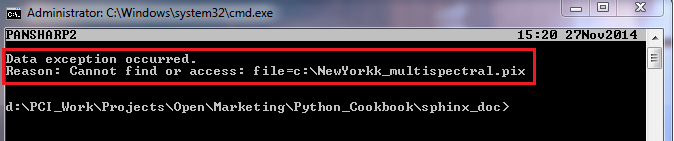
This results in python printing a PCI caught exception that the input multispectral file does not exist The script will continue to run through to the next line of code without exiting, because the exception is handled with a print statement.
Input Methods
This recipe demonstrates three (3) different input methods. Developers can decide if they want to input the file path directly as a variable, prompt users for the path location or pass the path as an argument.
# Method 1 - In the script directly
input_file = r"c:\raw_imagery\image.tif"


# Method 2 - With a user prompt
input_file = input("Please provide the path to the input image ")

'''The script will pause until the user provides an input path. At which point, the
variable "input_file" will be assigned the user provided path.'''


# Method 3 - Passing information as arguments when launching the script (usually the preferred method)
from sys import argv

script, input_image, output_dir = argv

print("input image is: " + input_image)
print("output directory is: " + output_dir)

'''The user running the script will be expected to provide the path to the input file
and output directory after providing the location of the script. Each argument is
separated by a white space

For example:

python c:\python_script\myscript.py "c:\raw_imagery\image.tif"
'''
